Documentation
1. Getting Started
Student Dashboard
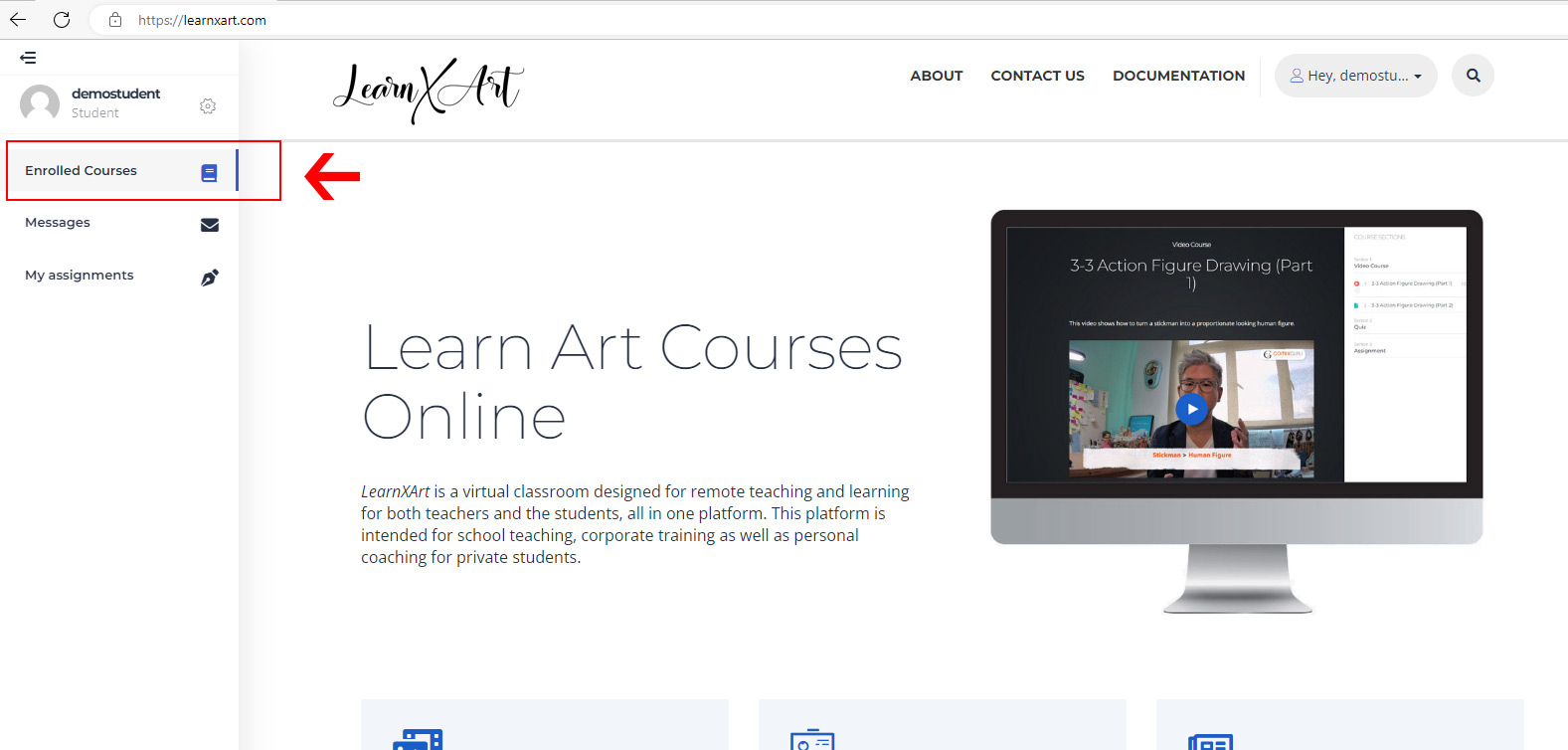
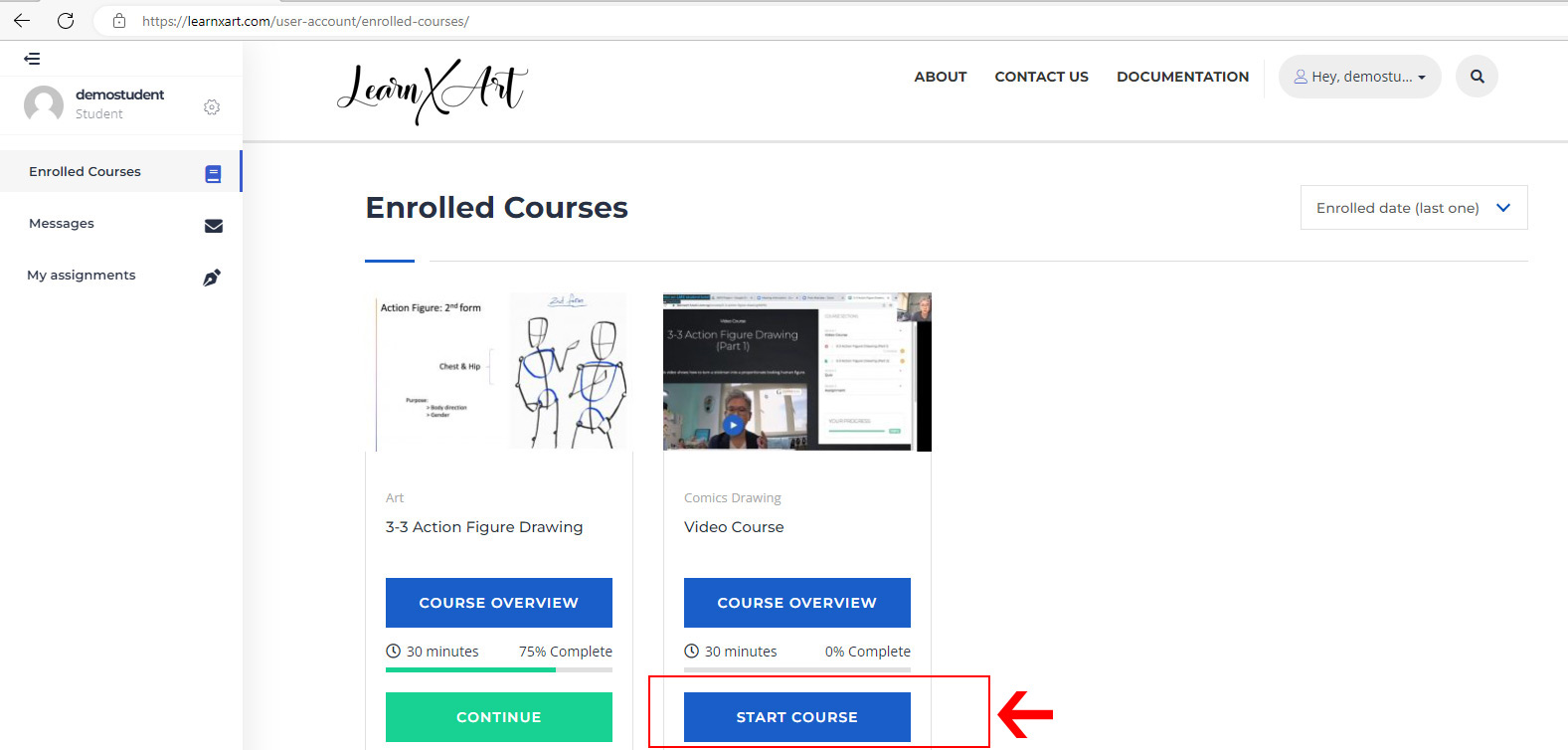
After logging in, you will see your dashboard menu on the left. Click on enrolled courses to see the courses you are enrolled to.
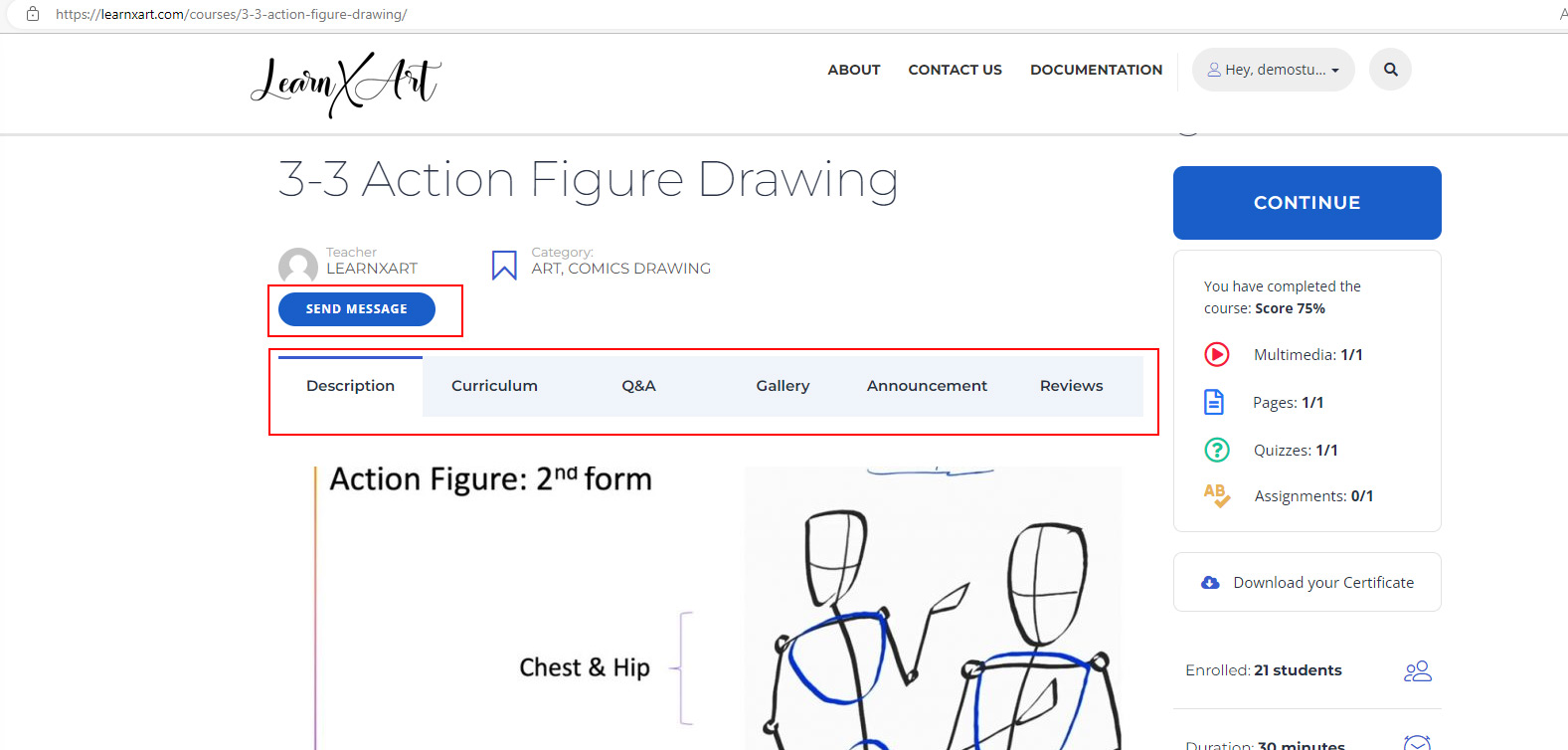
Click on course overview to see details about the course such as description, curriculum, gallery, announcement, and Q&A section (you can ask questions about the course here). You could also message your teacher from the course overview page which you will learn more below. Click here to learn more about messaging.
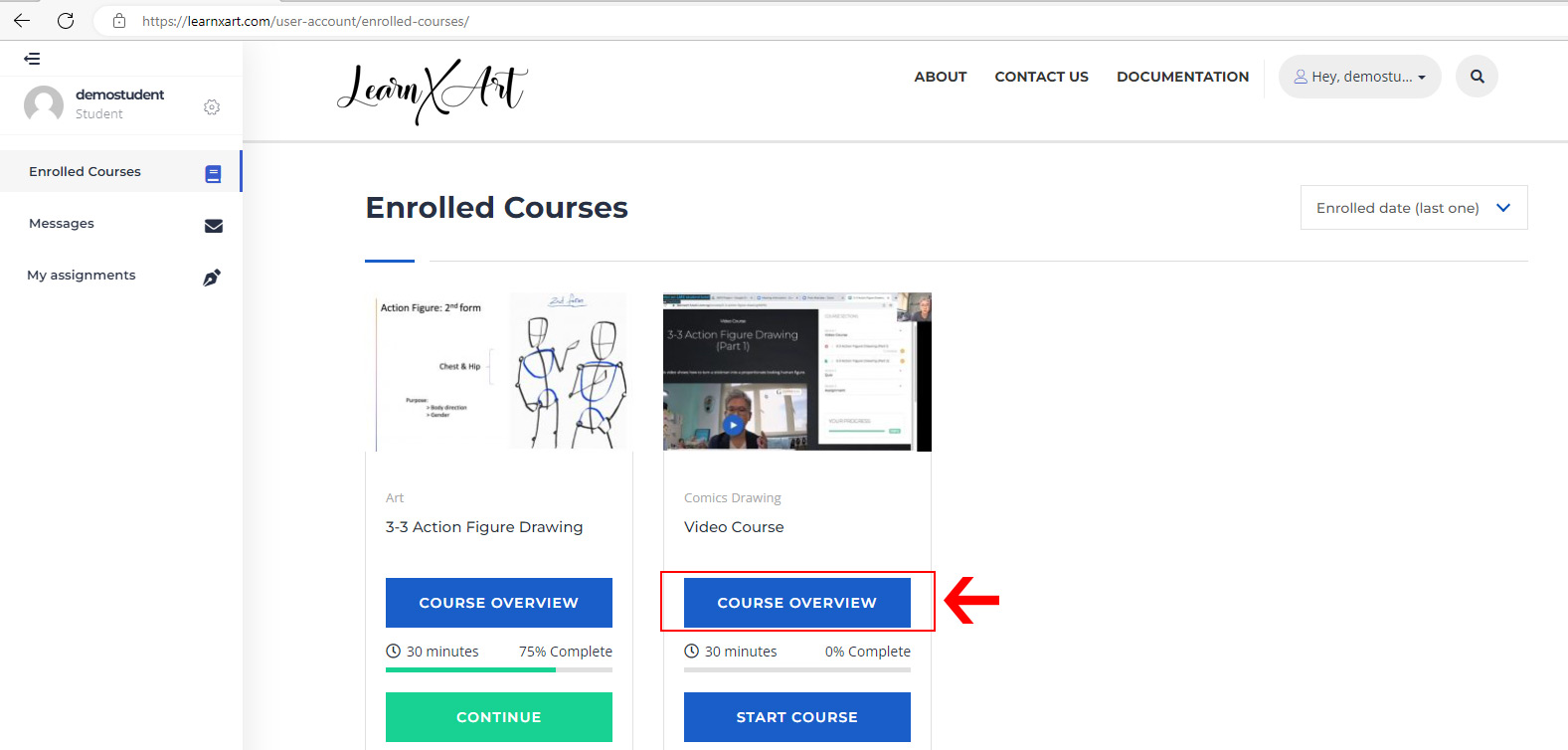
Course overview page:
Click on start course if you are ready to start the course or continue if you have previously started the course.
2. Messaging your teacher
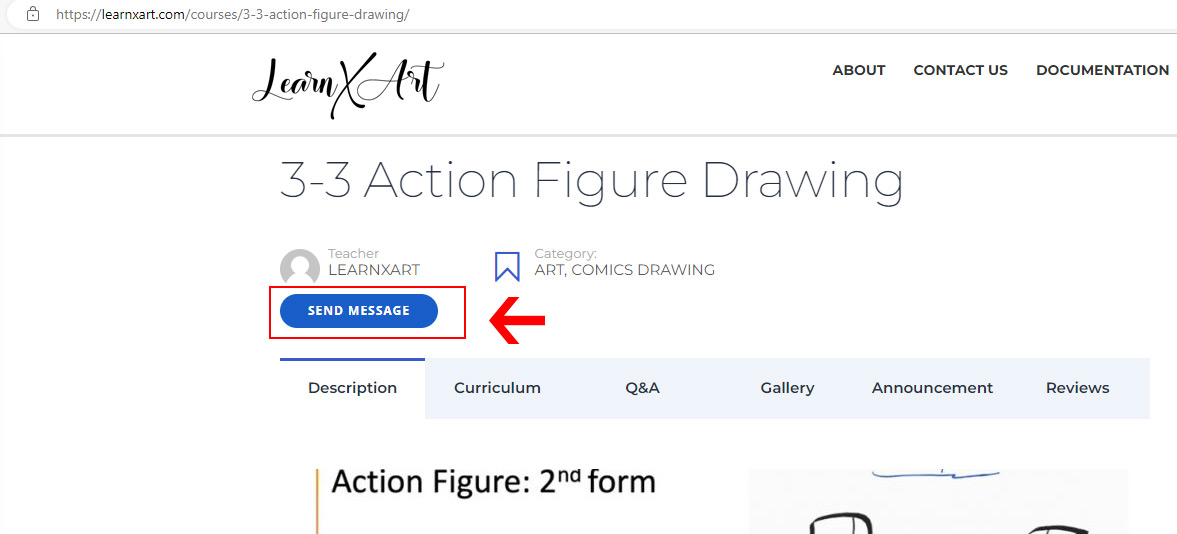
To start a message, go to the course overview page (which you can access from enrolled courses page) and click on send message button.
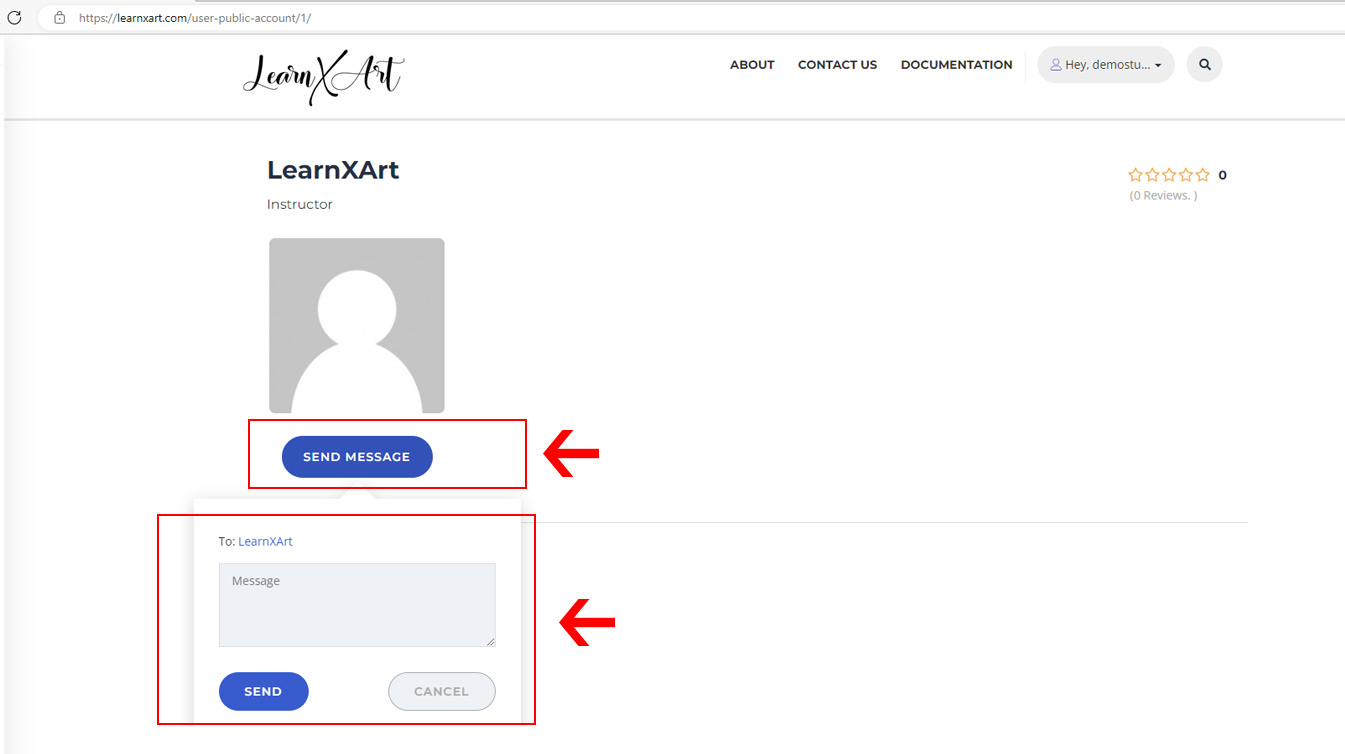
You will be directed to the teacher’s profile page, click on send message and you can now type in your message and click send to submit.
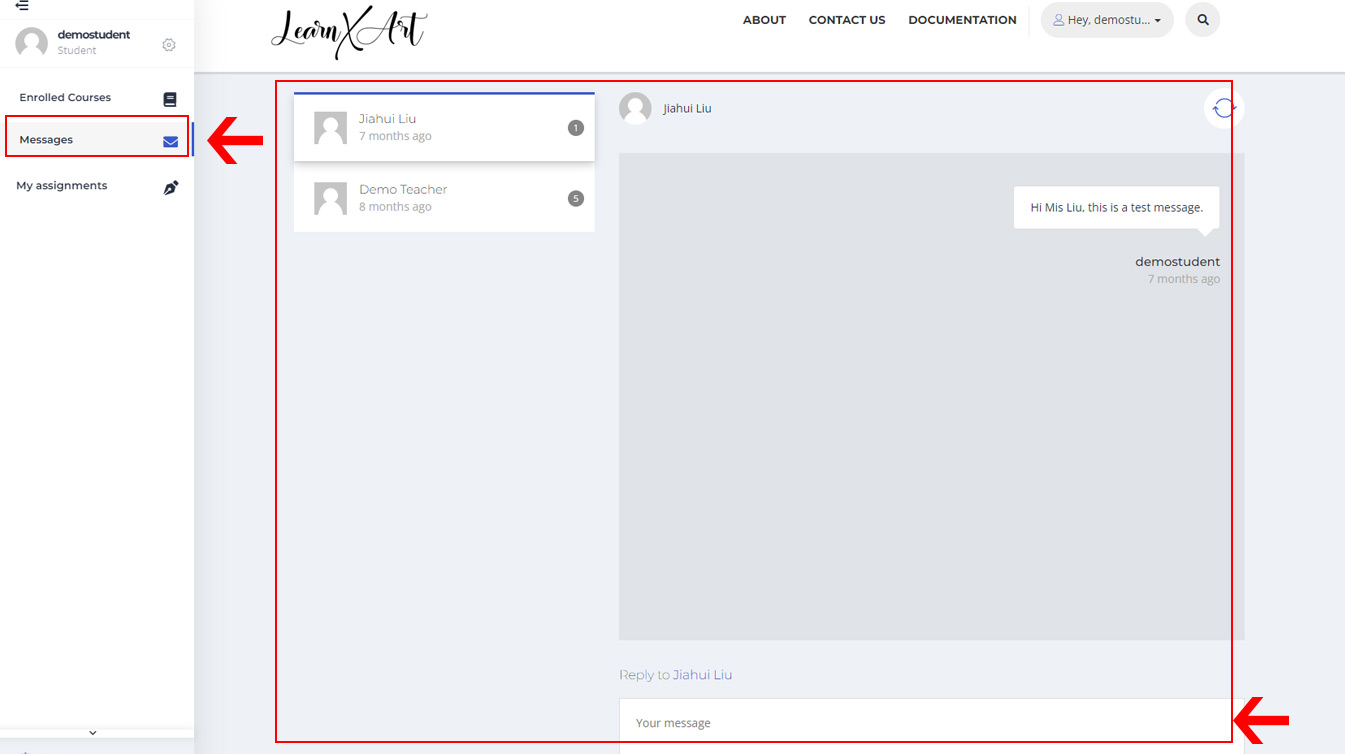
Once you have started a message chain, you can access the conversation trail and reply in the message page. Access the message page by clicking the message icon from the left menu.
3. Checking course results
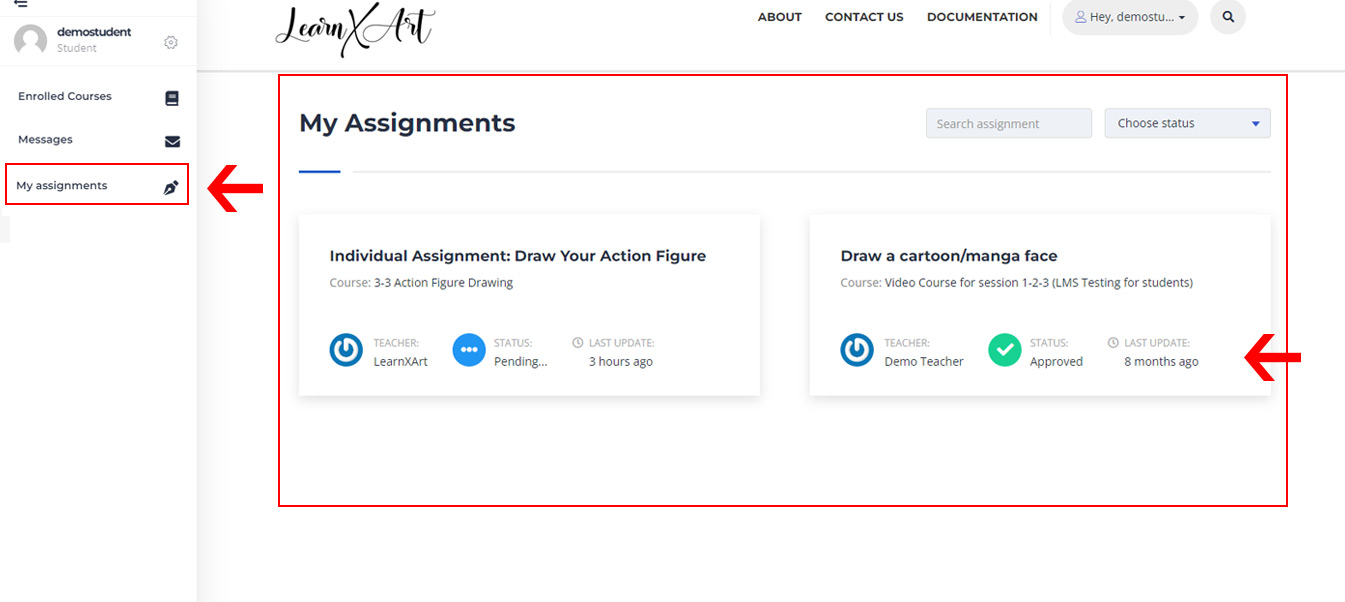
Click on my assignments from the left menu. You can view your assignment status here.